
D2Coding remains one of the most popular monospaced fonts among developers for its clean design, excellent readability, and strong support for coding environments. Installing this font correctly improves code clarity, reduces eye strain, and enhances productivity across programming projects.
Understanding D2Coding Font
D2Coding font represents a monospaced typeface designed primarily for developers working with programming languages such as Python, Java, JavaScript, and C++. Korean internet giant Naver created this font to improve coding readability and provide better character alignment for both Latin and Hangul scripts.
Coding environments benefit significantly from monospaced fonts because each character occupies the same amount of horizontal space. Consistent spacing allows developers to scan code more efficiently, detect errors faster, and maintain structured formatting across files.
Read More: D2Coding Ligatures Support: What You Need to Know
Key Features of D2Coding Font
D2Coding font delivers multiple advantages that make it a preferred choice among programmers:
- Clear distinction between similar characters such as 0 (zero) and O (capital O)
- Balanced spacing for improved code alignment
- Support for multilingual characters, including the Korean and Latin alphabets
- Optimized readability for long coding sessions
- Lightweight structure suitable for IDEs and text editors
Developers working on large-scale projects often choose this font to maintain consistency across development environments.
System Requirements Before Installation
Smooth installation requires a compatible operating system and a supported extraction tool. Most modern systems already meet these requirements.
- Windows 7 or later
- macOS 10.10 or later
- Linux distributions with font manager support
- Internet connection for downloading the font package
- ZIP extraction tool such as WinRAR, 7-Zip, or built-in archiver
Preparation of these components ensures a seamless installation process without interruptions.
Downloading D2Coding Font Safely
Reliable installation begins with obtaining the font from a trusted source. Official distribution typically comes in ZIP format containing TTF or OTF files.
Steps for download:
- Open a trusted font repository or official developer page
- Locate D2Coding font package
- Select the latest stable version
- Download the ZIP file to local storage
- Extract files into a dedicated folder
Proper file extraction reveals multiple font variants, such as Regular, Bold, and Ligature versions.
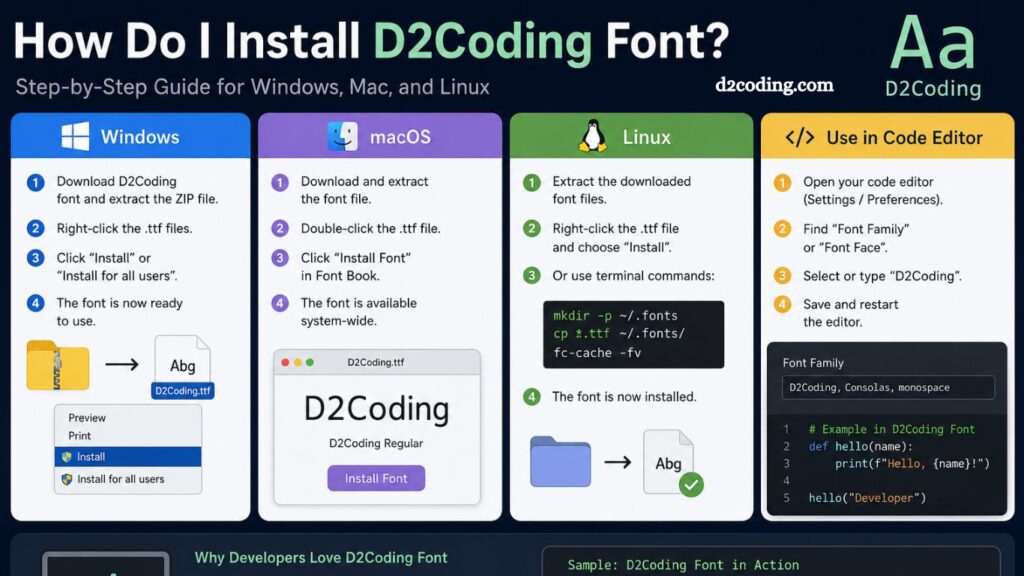
Installing D2Coding Font on Windows
Windows users benefit from a straightforward installation process using built-in font management tools.
- Step-by-Step Installation
- Extract the downloaded ZIP file
- Open the extracted folder containing .ttf files
- Select all font files
- Right-click selected files
- Click “Install” or “Install for all users.”
Font installation completes within seconds, making D2Coding available across all applications, including IDEs like Visual Studio Code, IntelliJ IDEA, and Sublime Text.
Alternative Method
Font Settings method offers another installation approach:
- Open Control Panel
- Navigate to Appearance and Personalization
- Select Fonts folder
- Drag and drop extracted font files into the folder
The system automatically registers the font for global use.
Installing D2Coding Font on macOS
Apple systems provide the Font Book application for efficient font management.
- Installation Steps
- Extract the ZIP archive containing font files
- Double-click the .ttf file
- Font Book application launches automatically
- Click the “Install Font” button
- Confirm installation for system-wide access
macOS validates font integrity before activation to ensure system stability.
Manual Drag Method
- Open Finder
- Navigate to Library > Fonts
- Drag font files into the folder
- System registers font instantly
- Installing D2Coding Font on Linux
Linux distributions support multiple installation methods depending on the desktop environment.
GUI Method
- Extract downloaded font archive
- Open file manager
- Locate .ttf files
- Right-click and select “Install”
Terminal Method
Command-line users can install a font using:
- mkdir -p ~/.fonts
- cp *.ttf ~/.fonts/
- fc-cache -fv
The system refreshes the font cache automatically after execution.
Setting D2Coding Font in Code Editors
Installation alone does not activate the font in development tools. Manual configuration ensures proper usage.
- Visual Studio Code
- Open Settings
- Search “Font Family”
- Add D2Coding to the font list
- Save configuration
- IntelliJ IDEA
- Navigate to Editor Settings
- Open Font section
- Select D2Coding from the list
- Apply changes
- Sublime Text
- Open Preferences
- Edit Settings
Add font preference line:
“font_face”: “D2Coding”
Common Installation Issues and Fixes
Font installation occasionally fails due to system restrictions or corrupted files. Troubleshooting resolves most issues quickly.
Font Not Appearing
Please refresh the system font cache or restart the device after installation.
Corrupted File Error
Please re-download the font package from a trusted source and re-extract the files.
IDE Not Detecting Font
Manually type the font name in the editor settings instead of selecting from the list.
Permission Denied
Run the installation as an administrator on Windows or use sudo on Linux.
Benefits of Using D2Coding Font for Developers
Programming productivity improves significantly with optimized typography.
- Enhanced code readability during long sessions
- Reduced visual fatigue for extended development hours
- Better alignment for debugging structured code
- Improved distinction between similar symbols
- Consistent appearance across platforms
Professional developers often standardize font usage across teams to maintain uniform coding environments.
Comparison with Other Coding Fonts
Several monospaced fonts compete with D2Coding in developer communities.
- Fira Code offers ligatures for symbolic expressions
- JetBrains Mono focuses on JetBrains ecosystem integration
- Consolas provides a default Windows coding experience
D2Coding stands out for its balanced multilingual support and simplicity, without unnecessary visual complexity.
Best Practices After Installation
Proper configuration ensures an optimal usage experience.
- Enable anti-aliasing in editor settings
- Adjust font size for comfortable reading
- Combine with dark themes for reduced eye strain
- Maintain consistent font across all development tools
- Regularly update font version for improvements
These practices maximize clarity and efficiency during coding sessions.
Frequently Asked Questions
What is the D2Coding font used for?
D2Coding font is mainly used for programming and coding because it improves readability and supports multiple languages, including Korean and English.
Is the D2Coding font free to use?
Yes, the D2Coding font is completely free and open for personal and professional use, especially in software development projects.
How do I install the D2Coding font on Windows?
Download the font, extract the ZIP file, select the .ttf files, right-click, and choose “Install” or “Install for all users.”
How can I install the D2Coding font on a Mac?
Open the .ttf file after extraction, then click “Install Font” in Font Book to activate it system-wide.
Can I use the D2Coding font in Visual Studio Code?
Yes, you can enable it by adding “D2Coding” in the font family settings inside Visual Studio Code preferences.
Why is the D2Coding font popular among developers?
It offers clear character spacing, reduces confusion between similar symbols, and improves overall coding readability.
What should I do if the D2Coding font is not showing?
Restart your system, refresh the font cache, or reinstall the font to fix detection issues in your applications.
Conclusion
D2Coding font installation remains a simple process across Windows, macOS, and Linux when followed correctly. Proper setup improves code clarity, enhances readability, and supports efficient development workflows. Developers benefit from its clean structure, consistent spacing, and multilingual support, making it a reliable choice for long coding sessions. Correct configuration in code editors ensures smooth usage and a more productive programming experience.