
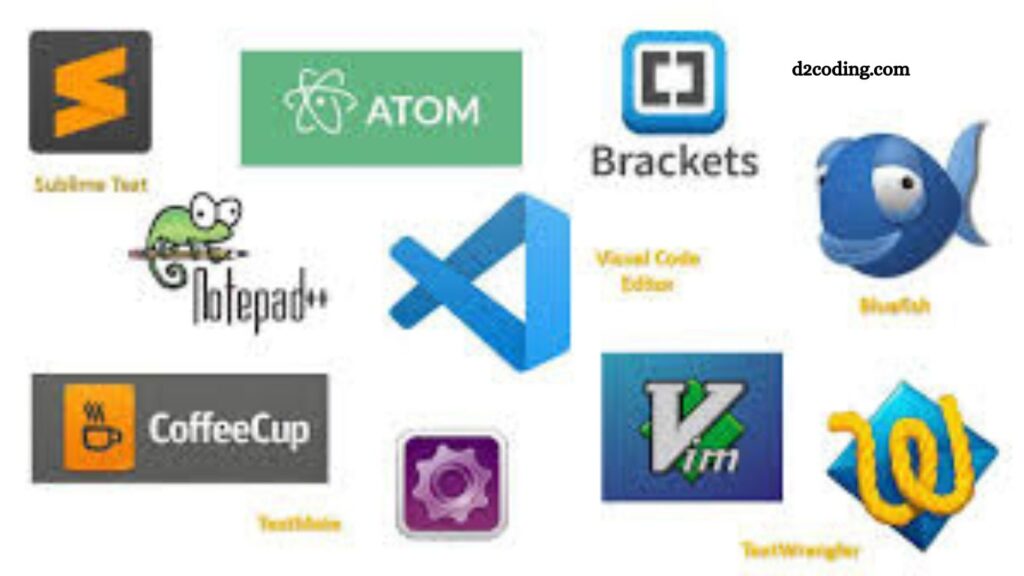
D2Coding font has become a preferred choice among developers who want a clean, readable, and highly optimized programming experience. This monospaced font improves code clarity, reduces visual fatigue, and enhances long coding sessions. Many developers search for the best code editor that supports D2Coding without issues. Understanding compatibility across modern editors helps you quickly set up a productive development environment.
This guide explains which code editors support D2Coding, how to install it, and how to configure it for the best coding experience.
Understanding D2Coding Font
D2Coding is a monospaced programming font designed to improve readability and reduce strain during extended coding sessions. Developers use it for its:
- Clean character spacing
- High legibility in dense code
- Clear distinction between similar characters (e.g., 0 and O, l and 1)
- Support for multiple programming languages
- Lightweight rendering performance
The font is widely used in web development, backend programming, and data-related work.
Read More: Install D2Coding Font: Step-by-Step Guide
Which Code Editors Support D2Coding?
D2Coding works with almost every modern code editor because most of them support custom font configuration. Below are the most widely used editors that fully support D2Coding.
Visual Studio Code (VS Code)
Visual Studio Code remains one of the most popular development tools worldwide and fully supports D2Coding.
Why VS Code works well:
- Easy font customization
- Cross-platform support (Windows, macOS, Linux)
- Lightweight performance
- Massive extension ecosystem
How to enable D2Coding in VS Code:
- Install the D2Coding font on your system
- Open Settings
- Search for “Font Family”
- Add:
- “D2Coding”
- Save settings
VS Code immediately applies the font across the editor interface.
IntelliJ IDEA
IntelliJ IDEA supports full font customization, making it ideal for Java, Kotlin, and backend developers using D2Coding.
Advantages:
- Advanced code intelligence
- Strong language support
- Stable UI rendering with custom fonts
Setup steps:
- Install D2Coding font
- Open Settings → Editor → Font
- Select Font Family
- Enter “D2Coding”
- Apply changes
IntelliJ renders D2Coding smoothly without spacing issues.
Eclipse IDE
Eclipse IDE supports custom fonts, including D2Coding.
Key benefits:
- Lightweight Java development environment
- Flexible UI settings
- Stable font rendering system
Configuration:
- Install D2Coding
- Navigate to Preferences → General → Appearance → Colors and Fonts
- Select Basic → Text Font
- Set font to D2Coding
- Apply settings
Eclipse handles D2Coding well for Java development workflows.
Sublime Text
Sublime Text is known for speed and simplicity, and it supports D2Coding without performance issues.
Features:
- Extremely fast startup
- Minimal UI design
- Easy font customization
How to apply:
- Install the font on the system
- Open Preferences → Settings
- Add or edit:
- “font_face”: “D2Coding”
- Save file
Sublime immediately updates the editor’s appearance.
Atom Editor
Atom also supports D2Coding through simple configuration changes.
Benefits:
- Open-source flexibility
- Theme and font customization
- Developer-friendly interface
Setup:
- Install D2Coding
- Open Settings → Editor
- Update Font Family to D2Coding
Atom applies changes instantly.
Notepad++
Notepad++ supports custom fonts, including D2Coding.
Highlights:
- Lightweight Windows editor
- Fast performance
- Simple configuration
Steps:
- Install D2Coding
- Open Settings → Style Configurator
- Choose Global Styles
- Select D2Coding as font
- Save settings
- Web-Based Code Editors
Modern online development tools also support D2Coding if system fonts are enabled or imported.
Examples include:
- StackBlitz
- CodeSandbox
- Replit
These platforms rely on browser font access, so D2Coding works if installed locally.
How to Install D2Coding Font
Before using any code editor, installation is required.
Installation steps:
- Download D2Coding font from the official repository
- Extract the ZIP file
- Install TTF or OTF files
- Restart the system if needed
After installation, all compatible editors automatically detect the font.
Why Developers Prefer D2Coding
D2Coding improves coding experience in several ways:
Enhanced readability
Characters remain clear even in complex code blocks.
Reduced eye strain
Balanced spacing supports long programming sessions.
Better productivity
Readable code improves debugging speed.
Multi-language support
Works with Korean, English, and programming symbols.
- Common Issues and Fixes
- Font not showing in editor
- Restart the editor after installation
- Verify system font installation
- Uneven spacing
- Ensure the monospace version is installed
- Editor ignores font setting
- Check configuration syntax
- Remove conflicting font settings
- Best Editors for D2Coding
While many editors support D2Coding, top choices include:
- Visual Studio Code for general development
- IntelliJ IDEA for Java/Kotlin projects
- Sublime Text for lightweight coding
- Eclipse for enterprise Java systems
Each provides stable rendering and smooth performance with D2Coding.
Frequently Asked Questions
What is the D2Coding font used for?
D2Coding is a monospaced programming font designed to improve code readability, reduce eye strain, and enhance developer productivity.
Which code editors support D2Coding?
Most modern editors support D2Coding, including Visual Studio Code, IntelliJ IDEA, Eclipse, Sublime Text, Atom, and Notepad++.
Is D2Coding compatible with Visual Studio Code?
Yes, Visual Studio Code fully supports D2Coding through simple font settings in the editor preferences.
How do I install the D2Coding font?
Download the font, install the TTF or OTF files on your system, then restart your code editor.
Does IntelliJ IDEA support D2Coding?
Yes, IntelliJ IDEA supports D2Coding and allows users to set it under Editor Font settings.
Can I use D2Coding in online code editors?
Yes, web-based editors like Replit or CodeSandbox can use D2Coding if it is installed on your system.
Why should developers use D2Coding?
D2Coding improves readability, reduces confusion between similar characters, and supports long coding sessions comfortably.
Conclusion
D2Coding integrates smoothly with nearly all modern code editors, making it a practical choice for developers across different programming environments. Editors like Visual Studio Code, IntelliJ IDEA, Eclipse, Sublime Text, Atom, and Notepad++ all support this font with simple configuration steps. Its clean design improves code readability, reduces visual strain, and supports efficient long-term coding.