
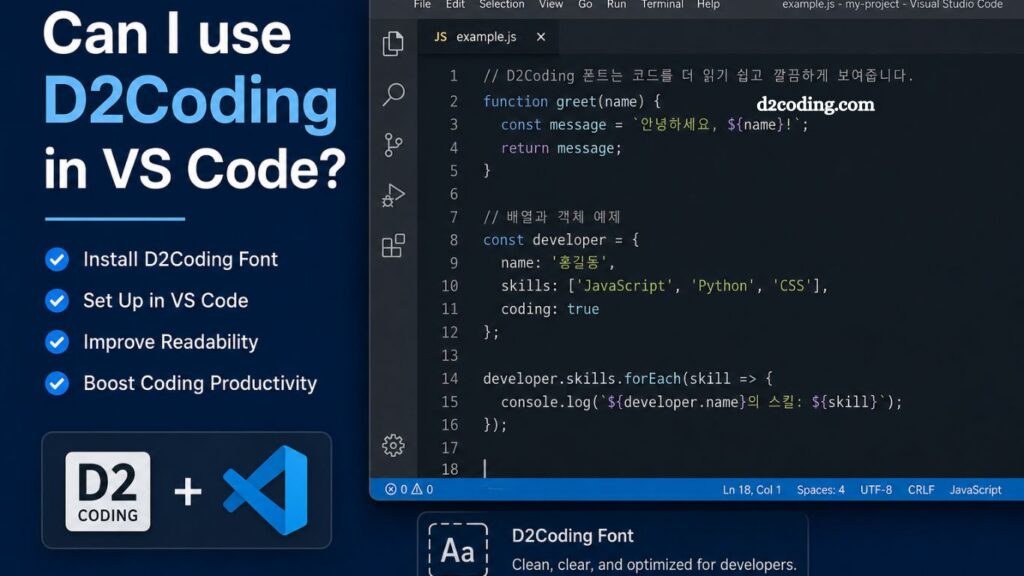
D2Coding is a widely used monospaced font designed for developers who work with Korean text alongside programming code. It is known for its clean structure, readability, and optimized spacing, making it a preferred choice for coding environments. Many developers using Visual Studio Code often ask whether D2Coding can be used effectively inside the editor and how to configure it properly.
The short answer is yes—D2Coding works seamlessly in VS Code. However, a proper setup is required to ensure the font displays correctly and enhances coding productivity. This article explains everything in detail, including installation, configuration, benefits, and optimization tips.
What is D2Coding Font?
D2Coding is a monospace programming font developed by NAVER. It is designed specifically for developers who frequently write code mixed with Korean characters.
Key characteristics include:
- Fixed-width design for clean alignment
- Improved readability for long coding sessions
- Optimized Korean and Latin character balance
- Developer-friendly spacing and glyph clarity
Unlike many standard fonts, D2Coding ensures that Korean characters do not disrupt code alignment, which is essential for multilingual development environments.
Read More: D2Coding Multi-Language Support Explained
Why Developers Prefer D2Coding in VS Code
Using a proper coding font directly impacts productivity and readability. D2Coding is popular in VS Code for several reasons:
Improved Code Readability
Clear character separation reduces eye strain and helps developers scan code faster.
Excellent Korean Language Support
Unlike many monospace fonts, D2Coding handles Hangul characters without disrupting alignment.
Consistent Layout
Code indentation, brackets, and spacing remain visually stable.
Open Source Availability
The font is freely available, making it accessible for all developers.
Developer Optimization
Designed specifically for programming environments, not general typography.
Can You Use D2Coding in VS Code?
Yes, D2Coding is fully compatible with Visual Studio Code. VS Code supports custom system fonts, allowing users to configure any installed monospace font.
Once installed on your operating system, VS Code can render D2Coding without additional plugins or extensions.
How to Install D2Coding Font
Before using it in VS Code, the font must be installed on your system.
Step 1: Download the Font
Download D2Coding from a trusted source or official repository.
Step 2: Install on Windows
- Right-click the font file
- Select “Install” or “Install for all users”
Step 3: Install on macOS
- Double-click the font file
- Click “Install Font” in Font Book
Step 4: Install on Linux
- Copy font files to ~/.fonts or /usr/share/fonts
- Run fc-cache —fv to refresh fonts
Once installed, the system will recognize D2Coding across applications.
How to Enable D2Coding in VS Code
After installation, configure VS Code to use the font.
Step 1: Open Settings
Go to:
File → Preferences → Settings
or press Ctrl + ,
Step 2: Search Font Settings
Type: font family
Step 3: Add D2Coding
In settings.json, update:
“editor.fontFamily”: “D2Coding, Consolas, ‘Courier New’, monospace”
Step 4: Save and Restart
Restart VS Code to apply changes.
Your editor will now display all code using D2Coding.
Best Font Settings for D2Coding in VS Code
To improve readability, adjust additional settings:
- Recommended Configuration
- “editor.fontSize”: 14,
- “editor.lineHeight”: 22,
- “editor.fontLigatures”: false
- Why These Settings Matter
- Font size 14 improves visibility without crowding
- Increased line height enhances readability
- Turning off ligatures preserves code clarity
Advantages of Using D2Coding in Programming
Better Multilingual Coding Experience
Developers working with English and Korean benefit from consistent formatting.
Reduced Eye Fatigue
Balanced spacing reduces strain during long coding sessions.
Improved Debugging Efficiency
Clear alignment makes errors easier to detect.
Professional Code Appearance
Clean typography improves presentation during collaboration or code reviews.
Common Issues and Fixes
Font Not Showing in VS Code
Cause: Font not installed properly
Solution: Reinstall and restart the system
Korean Characters Misaligned
Cause: Incorrect font fallback
Solution: Ensure D2Coding is listed first in the font family
VS Code Not Updating Font
- Cause: Cache issue
- Solution: Restart VS Code or reload the window
D2Coding vs Other Coding Fonts
D2Coding
- Best for Korean + English coding
- High readability
- Clean structure
- Consolas
- Default Windows coding font
- Good English support
- Limited multilingual optimization
Fira Code
- Supports programming ligatures
- Modern design
- No Korean optimization
D2Coding stands out for bilingual developers.
SEO Benefits of Using D2Coding in Development Workflow
From a productivity perspective, font choice indirectly impacts SEO work for developers building websites or writing code for content platforms.
Benefits include:
- Faster coding workflow for SEO tools
- Reduced errors in structured data
- Better readability for HTML, CSS, and JavaScript
- Improved collaboration in multilingual teams
Who Should Use D2Coding?
This font is ideal for:
- Korean developers
- Full-stack programmers
- Front-end engineers
- Data analysts working with scripts
- Students learning programming
If your workflow includes both Korean and English text, D2Coding is a strong choice.
Frequently Asked Questions
Can I use D2Coding in Visual Studio Code?
Yes, D2Coding works fully in Visual Studio Code after installation on your operating system.
How do I install the D2Coding font?
Download the font, install it on Windows, macOS, or Linux, then restart your system.
Do I need an extension to use D2Coding in VS Code?
No extension is required. VS Code supports system-installed fonts directly.
Why is D2Coding popular among developers?
It offers excellent readability and strong support for Korean and English coding environments.
How do I set D2Coding as the default font in VS Code?
Please open settings and add “editor.fontFamily”: “D2Coding, monospace” to settings.json.
Does D2Coding support programming ligatures?
No, it focuses on clarity and consistent monospace alignment rather than ligatures.
What should I do if D2Coding is not showing in VS Code?
Ensure the font is properly installed and restart VS Code or your system.
Conclusion
D2Coding integrates smoothly with Visual Studio Code and offers a clean, readable coding experience for developers working in multilingual environments. Its structured design improves code clarity, reduces visual strain, and supports consistent formatting across projects.